
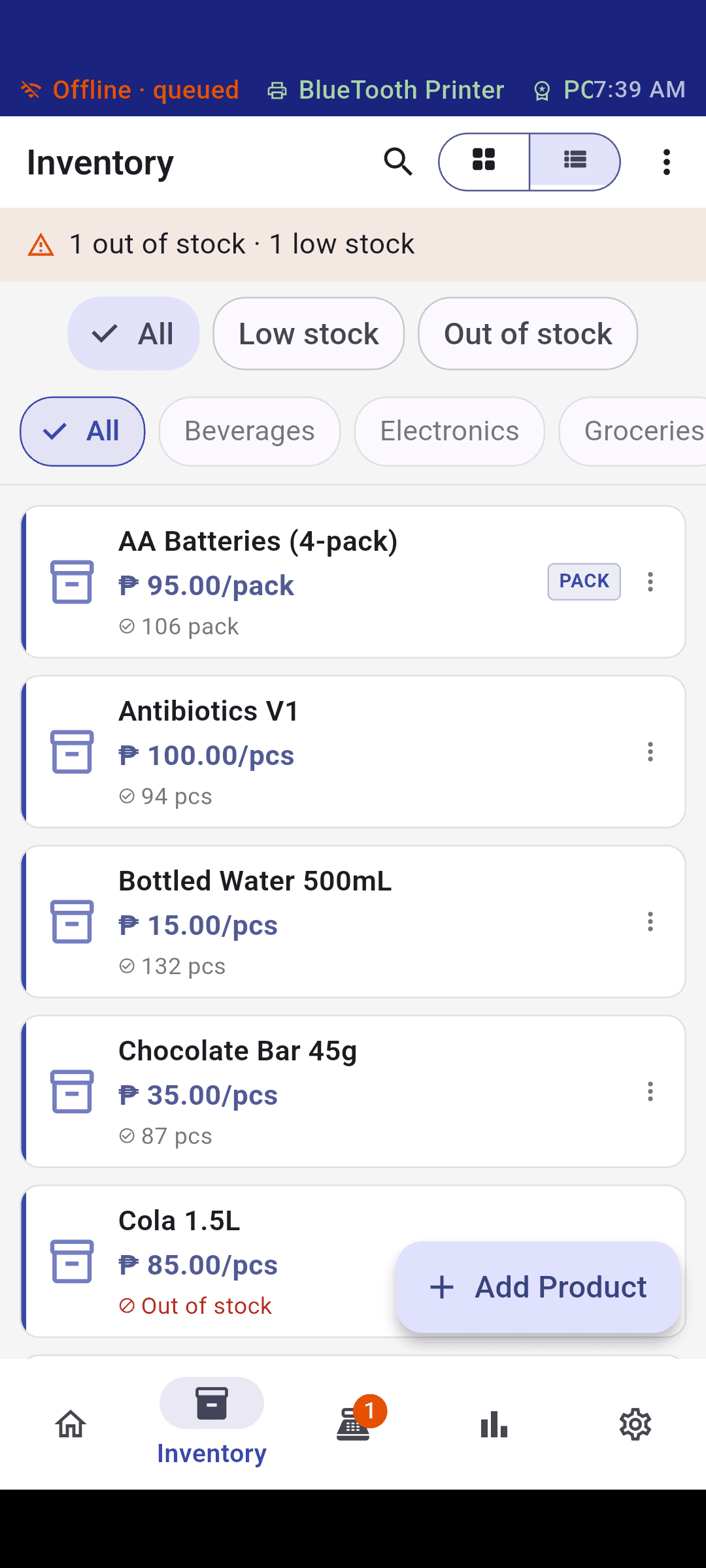
Find stock
A catalog built for real shelves
Search by name, SKU, or barcode, then filter low and out-of-stock products without digging through a spreadsheet.
Inventory, optional POS · Android profiles
Pick a business profile at setup—retail, hardware, clinic, kitchen, hotel, or laundry. Posh keeps stock honest on one Android device, then adds the floor tools that trade needs: register, queues, visits, stays, or claim tickets.
Rule-based reorder estimates can draft a PO or prefill Supply—nothing is ordered until you confirm.
Solo is free. Cloud sync and vertical Pro packs are optional.
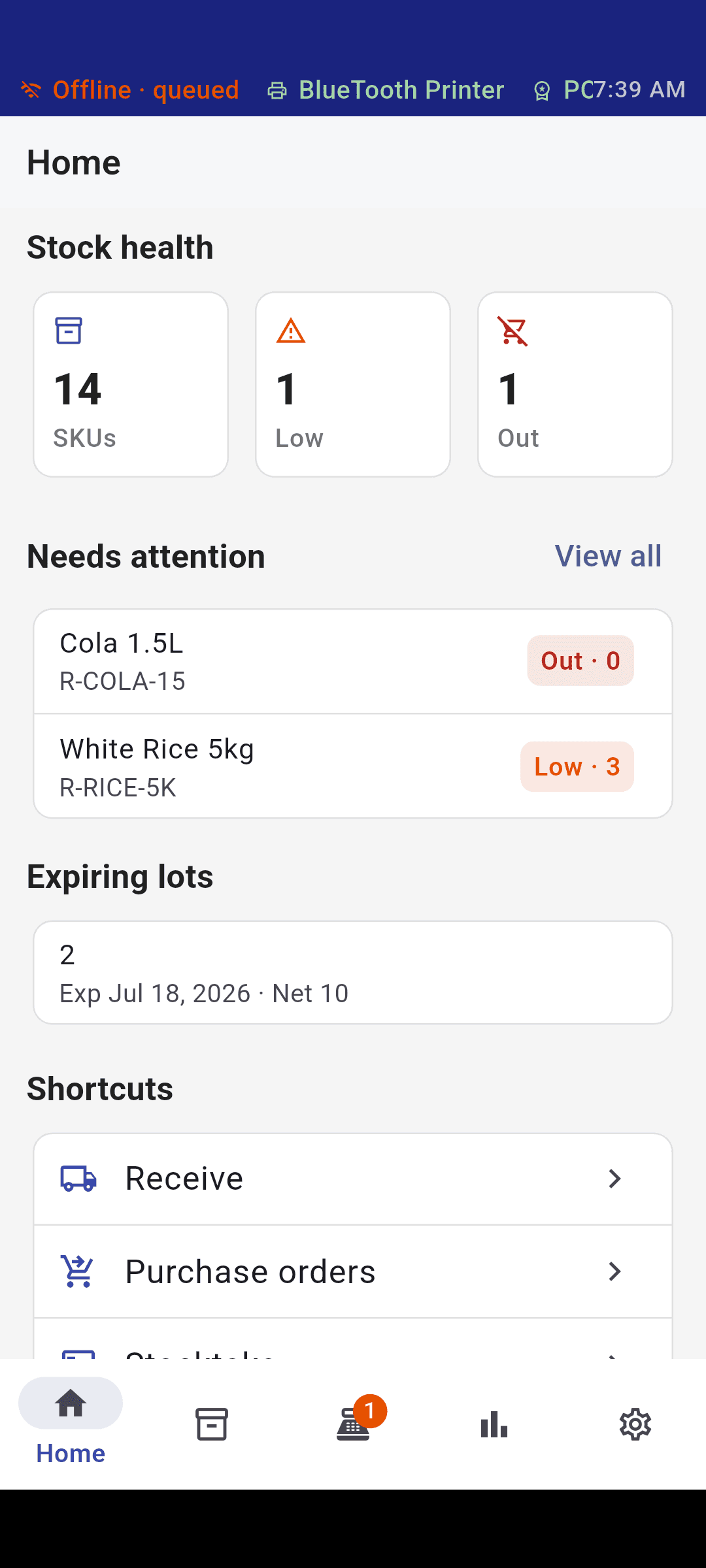
Business profiles
Pick a profile when you create your store. Same stock discipline—layouts and workflows tuned to the counter, clinic, kitchen, front desk, or laundry rack.
Standard catalog and inventory for day-to-day stock work, with optional POS when you need a register.
SKU-heavy catalogs, sell-by-length for cut goods like lumber, and denser tablet-friendly lists at the counter.
Patients, Calendar, and Visits; procedures as catalog products; charting, treatment plans, and public booking with Dental Pro.
Menu-first catalog with sizes, open orders, dine-in tables, and a kitchen prep queue; takeaway or delivery at the register.
Guests, rooms, and stays with folio settlement; room service at the register; guest QR hub and kitchen prep with Hotel Pro.
Per-kilo and piece-rate services, walk-in drop-off jobs with claim tickets, and pay on pickup; multi-device queue with Laundry Pro.
The actual app
Phone-first Posh screens designed to make the next decision obvious—catalog and scan views from the app, plus an illustrative replenishment workspace.
Find stock
Search by name, SKU, or barcode, then filter low and out-of-stock products without digging through a spreadsheet.
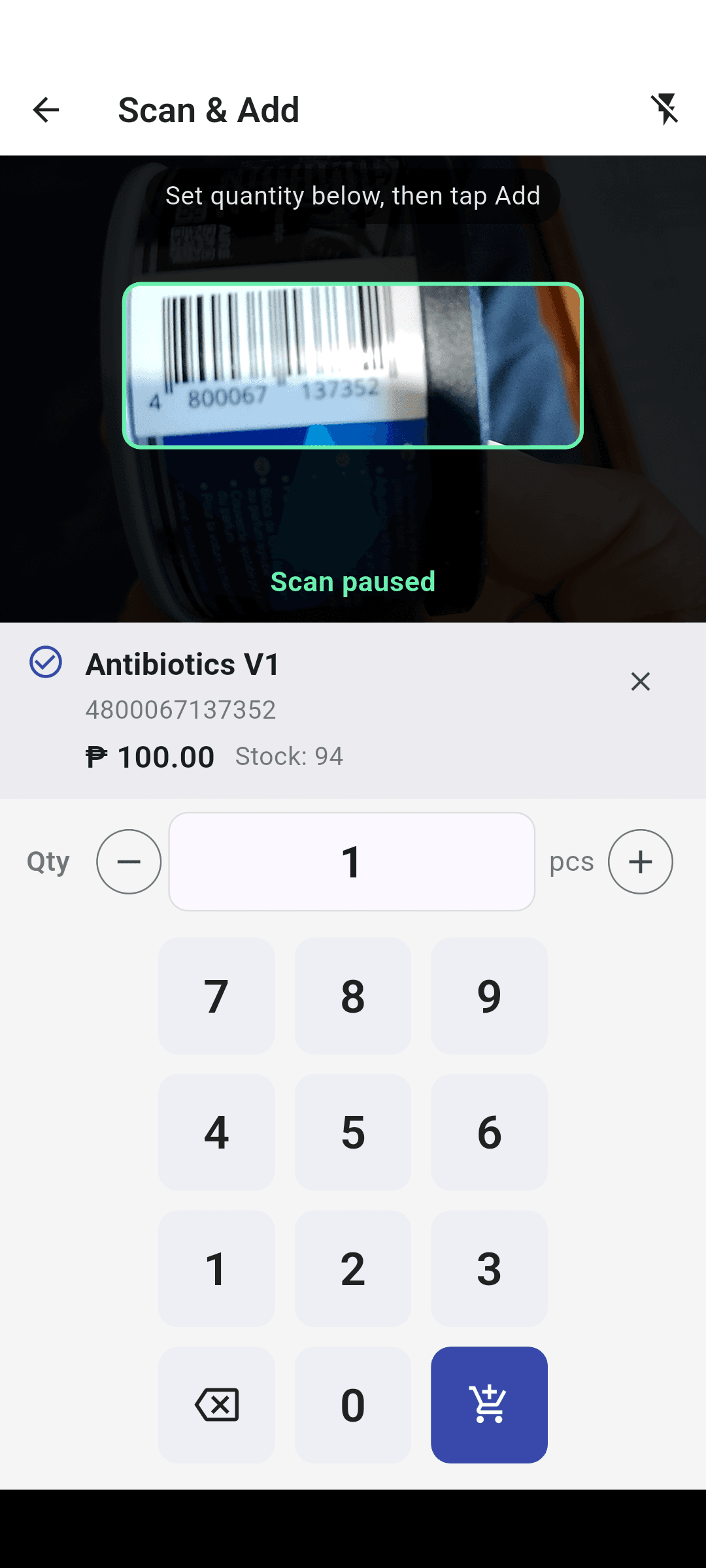
Move faster
Use the Android camera to find a product and set quantities while selling, receiving, or counting.
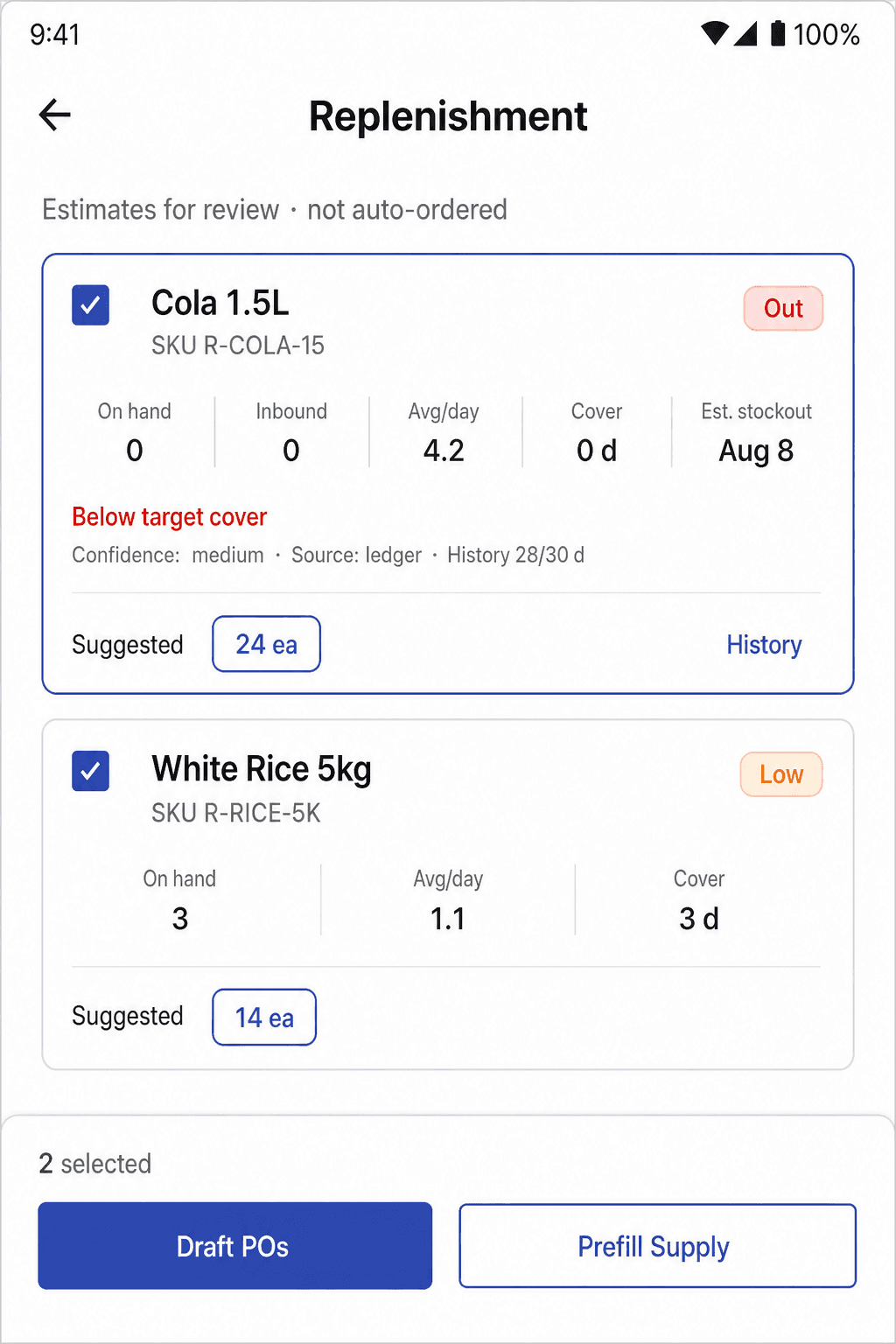
Reorder with review
Rule-based stockout estimates become editable suggested quantities—generate draft POs or prefill Supply, and confirm before anything is ordered.
Three useful outcomes
Posh keeps the daily loop small: record the movement, see the signal, act while it still matters—whether that is a shelf, a ticket, or a bag on the rack.
Receive, restock, adjust, and count against a local stock ledger. When stock runs low, rule-based reorder estimates become reviewable draft POs—or a Supply cart prefill you confirm before ordering.
Turn on POS when you need it, with barcode scan, receipts, refunds, customer credit, and sales reports on the same device.
Inventory and the optional register run locally after setup. Turn on cloud sync only for backup, staff devices, web orders, or distributor reorders.
How it works
Start with a profile and your catalog. Keep POS, Orders, and Sales reports on only where they help.
Choose a business profile, then add products, SKUs, barcodes, prices, and opening stock. Cloud sync is optional. New store setup finishes offline; Join and Restore need internet once for a code.
Sell, receive, restock, adjust, or count—or run profile workflows like open tickets, visits, stays, or laundry claims. Operational stock moves update on-hand and local history.
See stockout risk, then generate reviewable draft POs or prefill a linked Supply cart—you confirm before anything is ordered.
One supply relationship, two views
For retailers
Use full offline inventory and optional POS on every plan. If a distributor joins Posh, turn on cloud sync to browse their catalog, prefill estimated reorder quantities into Supply, and confirm checkout in the same app.
Compare store plans →For distributors
Give linked retailers a structured reorder path while reps keep ownership of credit, new products, promotions, and relationships.
Transparent plans
Full inventory, optional POS, and cloud sync are included on every tier. Retail and hardware use Solo → Team → Commerce. Food, dental, hotel, and laundry use a single Pro plan. Distributor reorders work on any plan after approval and linking.
Free
Owner-run stores that need stock clarity offline
₱99/mo
Add staff without losing control of inventory
₱199/mo
Same store OS, plus a customer web storefront
One Pro subscription each—no Team step. Until you subscribe, you can browse basic local screens; vertical pack features show a subscribe prompt.
₱599/mo
Counter service with kitchen and online orders
₱799/mo
Clinic inventory plus charting and booking
₱1,499/mo
Guest hub, stays, and room-service prep
₱399/mo
Shared drop-off queue across staff devices
Before you decide
Practical details about setup, plans, connectivity, and reordering.
Yes. Inventory, receiving, stock counts, clinical work (dental), food-service open orders and kitchen tickets, hotel stays on this device, laundry drop-off jobs on this device, and—when enabled—the register all run on a local database. New store setup finishes offline after you save the store profile; Join and Restore still need internet once for a code. Placing a B2B reorder to your distributor needs connectivity when you submit the order.
Both—and the store half of a distributor–retailer OS. Every plan includes full inventory and optional point of sale, orders & receipts, and sales reports you can toggle in Settings → Add-ons (on by default so existing stores keep full capabilities). Turn POS off if you only need stock tracking. Business profiles add trade-specific workflows on top of that core.
At create-store setup you choose General retail, Hardware store, Dental clinic, Food service, Hotel, or Laundry shop. Retail is the standard catalog and optional POS. Hardware adds SKU-forward lists and sell-by-length. Dental adds Patients, Calendar, and Visits, with charting, treatment plans, and public booking on Dental Pro. Food service is menu-first with size variants, open orders, dine-in tables, a kitchen prep queue, and takeaway or delivery at the register. Hotel reuses that F&B model with guests, rooms, stays/folios, and a guest QR hub. Laundry adds per-kilo and piece-rate services, claim tickets, and pay-on-pickup jobs (multi-device queue on Laundry Pro). Sales & POS is on by default for food, hotel, and laundry.
Yes on any plan with cloud sync, once your store is approved as a supply buyer and linked to a distributor partner. Browse their catalog and place B2B reorders inside Posh—no separate wholesale portal. A customer storefront (Commerce or vertical Pro) is not required for B2B. If your distributor isn’t on Posh yet, you still get full offline POS and inventory.
Posh can estimate reorder quantities with a rule-based sell-through lookback (not machine learning), then generate supplier-grouped purchase order drafts for you to review—or prefill a linked distributor’s Supply cart. Nothing is marked ordered or submitted until you confirm. Low-stock alerts and manual POs remain available either way.
Retail and hardware: Solo is free (owner device, full inventory, optional POS, cloud sync). Team is ₱99/mo (admin plus two staff devices, invite codes, catalog photos). Commerce is ₱199/mo (everything in Team plus a customer web storefront). Food, dental, hotel, and laundry use one Pro plan each—Food Pro ₱599/mo, Dental Pro ₱799/mo, Hotel Pro ₱1,499/mo, Laundry Pro ₱399/mo—with no Team step. On every plan with cloud sync, you can apply as a supply buyer to browse linked distributor catalogs and place B2B reorders in-app. See Help → Subscriptions & billing for details.
On first launch, pick one of three paths: Set up a new store (store profile unlocks the workspace; a PIN is optional later in Settings; cloud backup connects when online), Restore store from cloud (admin on a replacement device), or Join as cashier (a second register—needs Team, Commerce, or a vertical Pro plan). Restore and join need codes from your store admin and internet. After that, add products and manage inventory—the app stays offline-capable day to day.
Contact Posh support for a one-time restore code (admins do not generate restore codes in Settings). On the new device, choose Restore store from cloud, confirm your store details, then enter the recovery code when prompted during cloud sync. You can set a PIN later in Settings. Posh pulls your catalog and settings from the cloud so the device matches your other registers.
Staff devices need a paid plan: Team or Commerce for retail/hardware, or the matching Pro plan for food, dental, hotel, or laundry. Contact your store admin and ask for an invite code (generated in Settings on an admin device). On a new install, choose Join as cashier, enter your display name, then enter that invite code when you connect cloud sync. Set a PIN later on Device if you want later launches to require it. Cashiers open POS or Orders (when those add-ons are enabled)—not Inventory, reports, or settings.
Yes, with cloud sync and a paid plan (Team, Commerce, or vertical Pro). Paid plans include admin plus two staff devices. Admins get Inventory and optional add-on tabs; cashiers and inventory staff see role-gated tabs when enabled. Contact the developer for additional seats beyond two staff devices.
Posh is an Android app today, built for phones and tablets used at the counter and in the stock room.
Your data lives on your devices locally. When sync is on, copies are stored in the cloud under your control. Stock movement history is kept on-device only today—not synced to the cloud. Consented sell-out shared with a linked distributor is purpose-limited to that supply relationship.
Yes for Set up a new store: enter store details, then use the workspace immediately. A PIN is optional later in Settings. Cloud backup connects automatically when you are online (or from Settings). Join and Restore still need internet and a code before the app unlocks.
Start on one Android device
Use Solo free on one Android device. Add staff, a storefront, or a vertical Pro pack when your shop needs them.